1 · What it does
When you show a “was” price next to a sale price, UK/AU/CA guidance expects the was-price to be one you genuinely offered for long enough. This app records your selling prices continuously, checks — per the market rule you pick — whether that recorded history substantiates your was-price claim, and shows a verified note on the product page when it does.
It only uses your offered prices (recorded history), never orders or sales volume — so it needs no access to customer or order data. It never invents a price: if history can't back a claim, the note stays hidden.
2 · Getting started
3 · Choose your markets
On the dashboard, the “Markets” card lets you pick where you sell (multiple allowed). Each market applies its own rule:
| Market | Rule used |
|---|---|
| United Kingdom | CMA reference-pricing principles (28-day default + flip-flop check) |
| Australia | ACCC was-price guidance (12-week default) |
| Canada | Competition Act s.74.01 ordinary-price time test (>50% of 6 months) |
4 · Nothing to enter — it records automatically
There is no manual price entry. Prices are recorded at four moments: at install, at every price change (Shopify sends a webhook the moment you save a product), at an automatic daily snapshot, and when you press “Record snapshot now”. Discount codes and personalised prices never count — only your publicly offered selling price.
A verified note appears only when a variant is currently discounted (compare-at above the price) and your recorded history supports the was-price under your market rule.
5 · Show it on the storefront
Dashboard card → Open theme editor, then add the “Price history badge” app block inside the product information section, ideally just below the price, and Save.
What appears
- When history supports the claim: “Price history verified — was-price held N days”.
- While history is still building: an honest, price-free line — “Price history is being recorded to verify this reduction.” — so a discounted product is never blank.
- On a product with no discount: nothing (expected).
History counts from today, not from when you add the block. The verified note needs the full window (UK 28 days / AU 12 weeks / CA test) before it can appear.

6 · Check your was-price claims
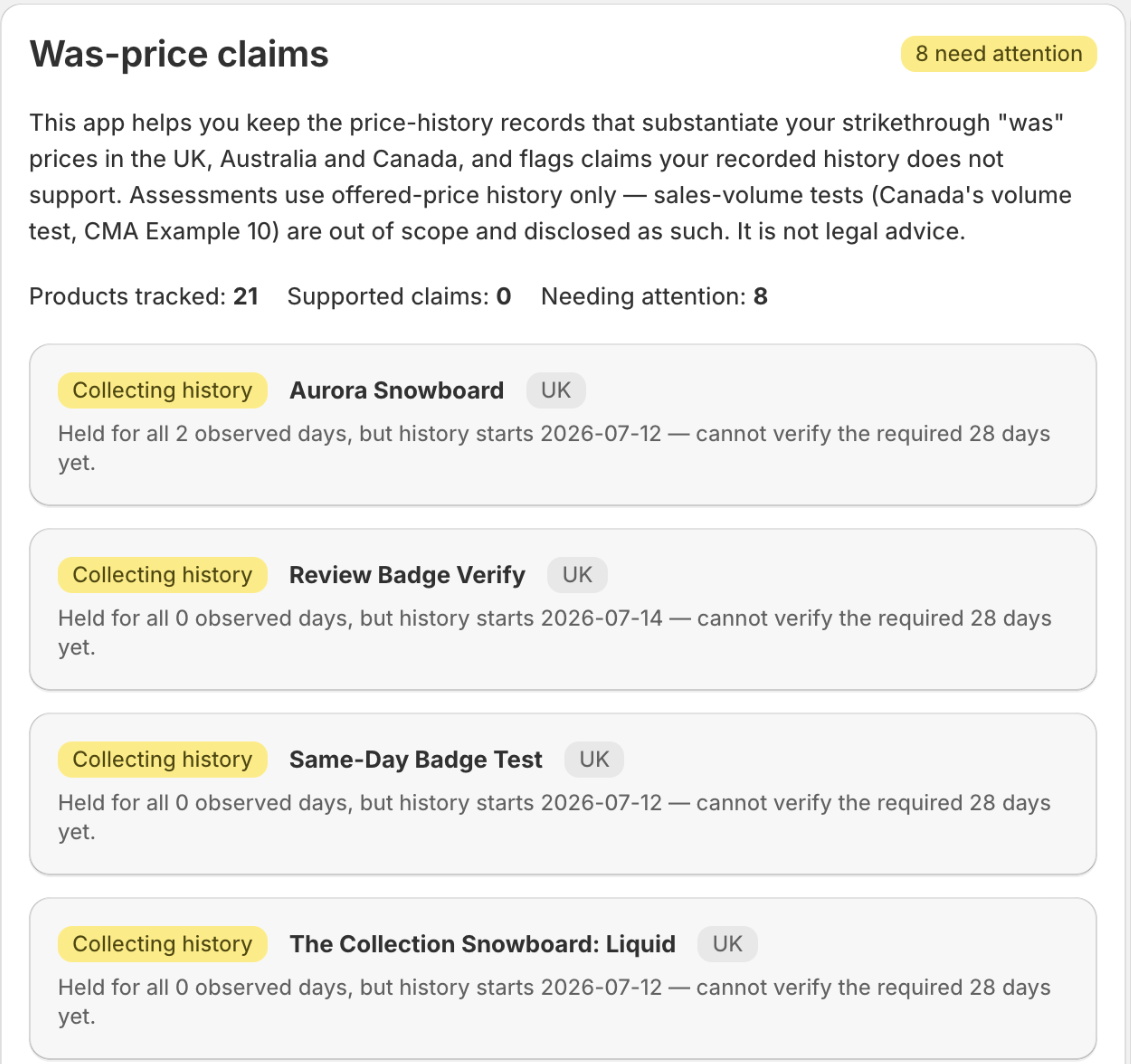
The dashboard “Was-price claims” card lists your products worst-first, each with a status and the reasoning behind it:
| Status | Meaning |
|---|---|
| History supports the claim | Your recorded history backs the was-price. |
| History does not support the claim | The was-price isn't substantiated — worth reviewing before you advertise it. |
| Collecting history | Not enough history yet. |
| No was-price claim | Not discounted — nothing to assess. |
Each row shows the basis (the recorded facts behind the verdict). Reviewing and adjusting prices is your decision as the trader — the app checks and flags, nothing more. Sales-volume tests (Canada's volume test, CMA Example 10) are out of scope and disclosed.
7 · Plans
| Plan | What you get |
|---|---|
| Free | Everything: all products, all markets together, the storefront verified badge, and the audit CSV export. |
There is one plan and it is free — no product cap, no locked features, nothing to approve.
Price history records for your whole catalog from install.
8 · Commonly confusing (read this)
- “The dashboard / storefront is empty.” You probably haven't picked a market yet — do that first (§3). The app records history immediately, but it can't assess or display anything until it knows which market rule to apply.
- It tracks every price edit, wherever you make it. Price changes arrive by Shopify webhook — admin, bulk editor, CSV import, or another app — so the recorded history never depends on which editor you use.
- Discount codes don't enter the assessment. The was-price check uses the prices you publicly offered; personalized and code-based prices are never counted.
- The verified note takes time to appear. The window must fill first (UK 28 days, AU 12 weeks, CA 6-month test), counting from when the app started recording — not from when you placed the block. A promotion that was already running before install won't get a badge; start cleanly with your next reduction.