1 · What it does
Under the EU General Product Safety Regulation (Regulation (EU) 2023/988), distance sales must show, on the product page, who the manufacturer is, an EU Responsible Person when the manufacturer is outside the EU, product identification, and any safety warning — in the buyer's country language where possible.
This app stores the details you enter, works out whether each product has everything its markets need, and a theme block renders that information on your product pages. It never invents or translates data: if a product is missing something, the block simply shows nothing for it.
2 · Getting started (first 10 minutes)
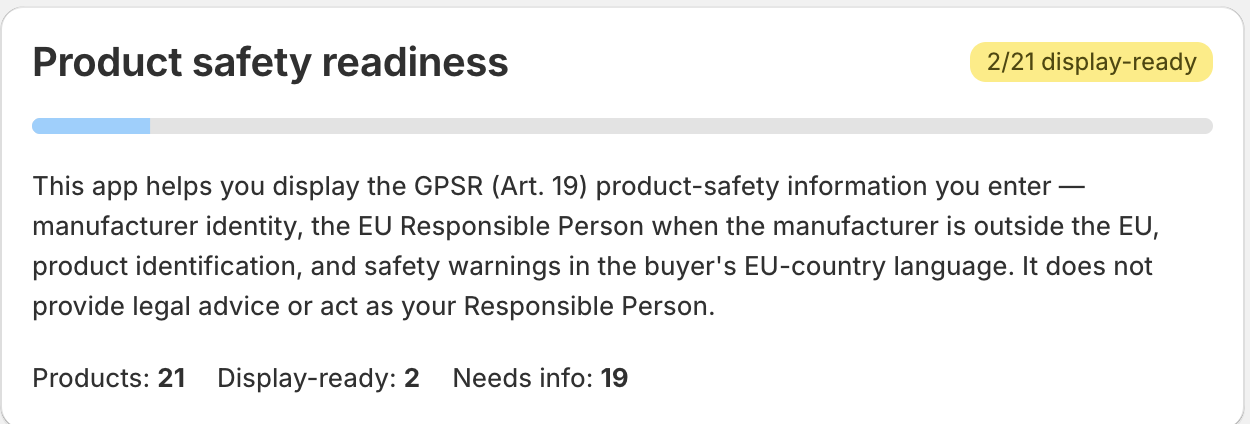
The dashboard's top card — “Product safety readiness” — shows a X / Y display-ready badge and counters (Products / Display-ready / Needs info) so you can see progress at a glance.
3 · Set your target EU markets
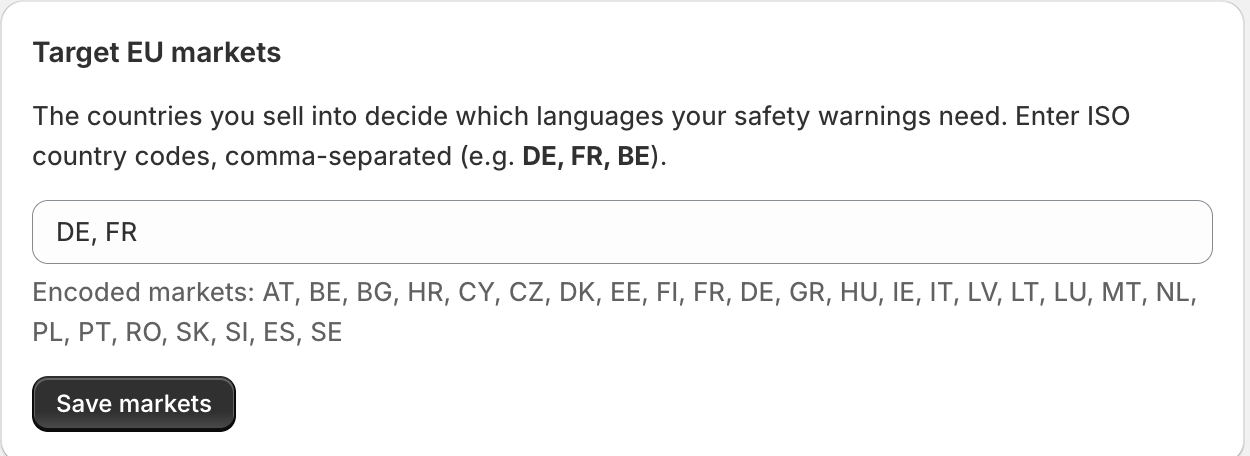
On the dashboard, the “Target EU markets” card takes the EU countries you sell to. This matters because a product is only “display-ready” when it has a safety warning in each required market's language. Set this before filling products — otherwise a product can look complete but still be short a language.
4 · Enter manufacturers & Responsible Person
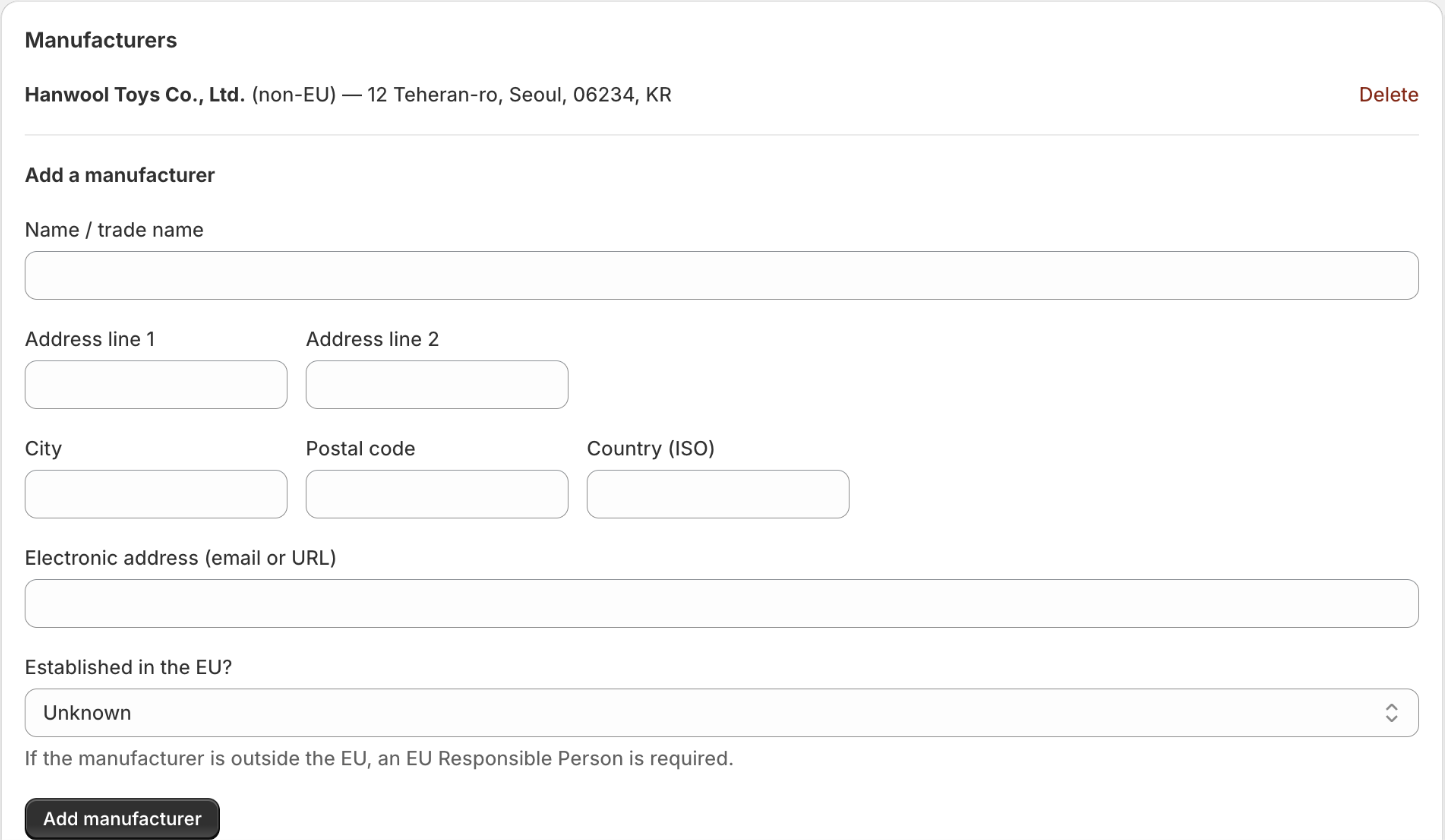
Open Manufacturers & RP (button on the dashboard). You enter these once and reuse them on every product.
Manufacturer form
EU Responsible Person form
This app displays the Responsible Person you enter — it is not your Responsible Person and does not provide that service.
5 · Fill in each product
Open Products. Edit one product at a time in the “Edit product safety details” card:
Product — pick the product from the dropdown (each option shows its completeness).
Manufacturer — choose one you added in §4. This links the manufacturer to the product — you don't re-type the address.
EU Responsible Person — choose one (required when the manufacturer is outside the EU).
Product type and Identifier (model/SKU).
Picture reference — an image URL or handle.
Safety warnings — multiline, one per line as lang: text. Example:de: Achtung! Kleinteile.fr: Attention ! Petites pièces.
Then Save.
de: …). A line without a leading lang: is silently ignored — so if a warning “won't save”, check the xx: prefix and the colon.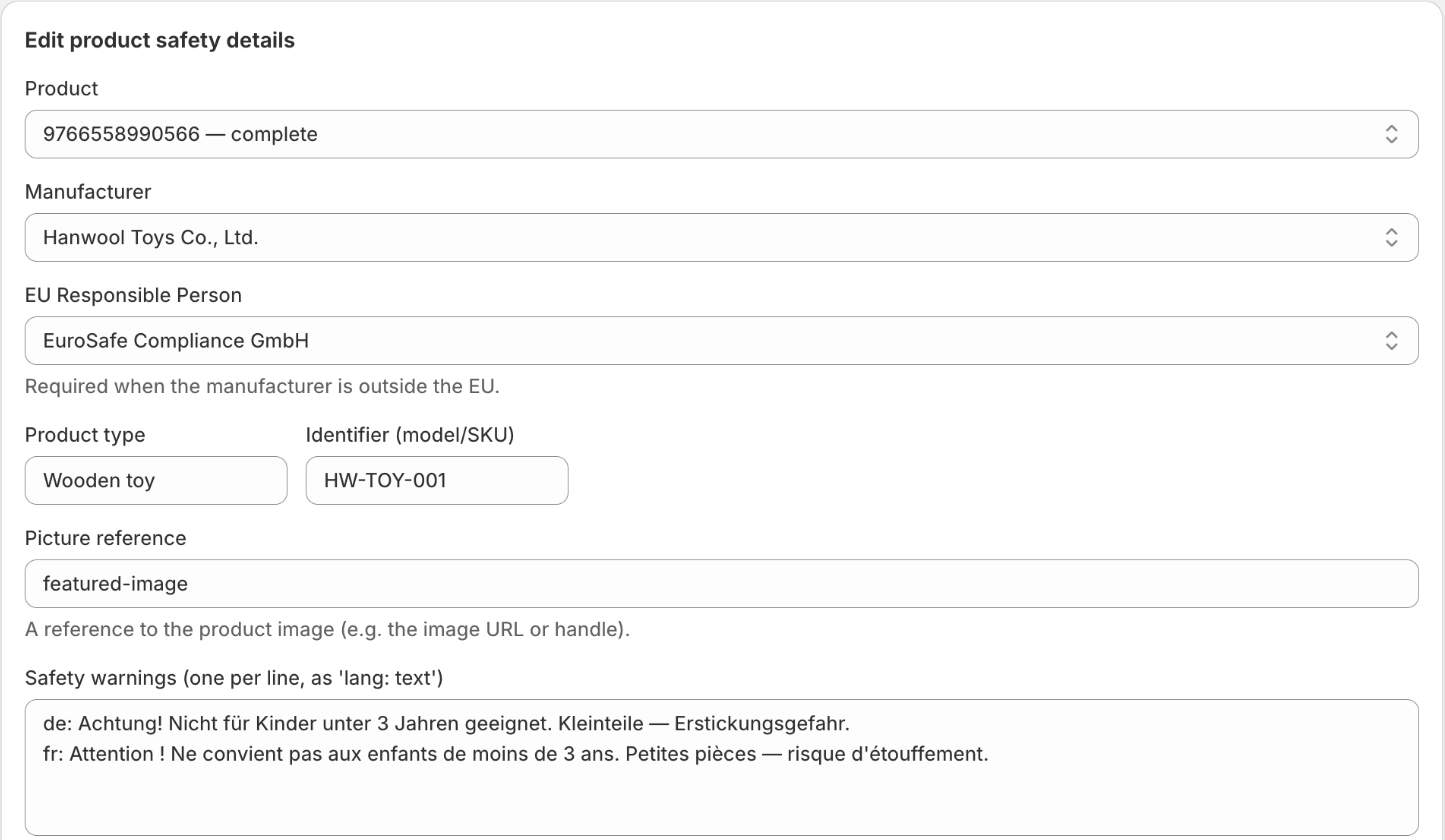
de: … / fr: … lines.6 · Show it on the storefront
The dashboard card “Show the disclosure on your storefront” has an Open theme editor button. Then:
- Open your theme editor on a product template.
- Add the “GPSR product safety” app block inside the product information section.
- Save.
What appears on the product page
Once a product has a manufacturer, the block shows — in the shopper's language when available (falls back de-DE→de→en):
- a heading (default “Product safety information”),
- the manufacturer name, address and contact,
- the EU Responsible Person (only if entered),
- product identification, and
- any ⚠ safety warning.
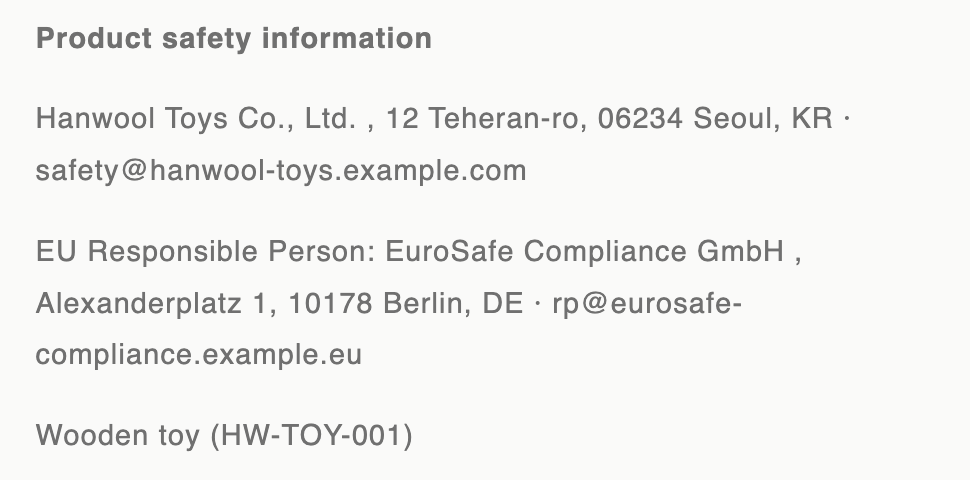
In the theme editor you'll see a sample “Example Manufacturer GmbH …” preview so you can place the block. That sample never appears on the live storefront — there it shows only your real data (a product with no data shows nothing).
7 · Check readiness & fix gaps
The dashboard counters and the per-product Display-ready / Needs info badges show where you stand. A product is complete only when every required field is filled and every target market has its warning language.
When you Save an incomplete product, a banner lists exactly what's missing in plain words — e.g. “Manufacturer postal address”, “Product identifier (model or SKU)”, “Safety warning for market DE (language: de)”. If a missing item lives on another screen (manufacturer/RP address or email), the banner links you straight to the Manufacturers & RP page.
8 · Plans
| Plan | What you get |
|---|---|
| Free | Everything: every product shows the storefront disclosure, and the audit CSV export of your entered data is included. |
There is one plan and it is free — no product cap, no locked features, nothing to approve.
9 · Commonly confusing (read this)
- “I filled the product form but it still says Needs info.” The manufacturer's address and email live on the Manufacturers & RP page, not the product form. The product only links to them. The save banner now links you to the right page — follow it.
- A safety warning “didn't save.” The warning box needs the
lang: textformat (de: …). Lines without a leadingxx:are dropped. Also: a warning only counts if its language is one of your target EU markets — set markets first.